
SimpleRec Studio · Android

SimpleRec Screen Recorder

Record, trim, mute, and share your screen videos. Keep the original.
  • No account
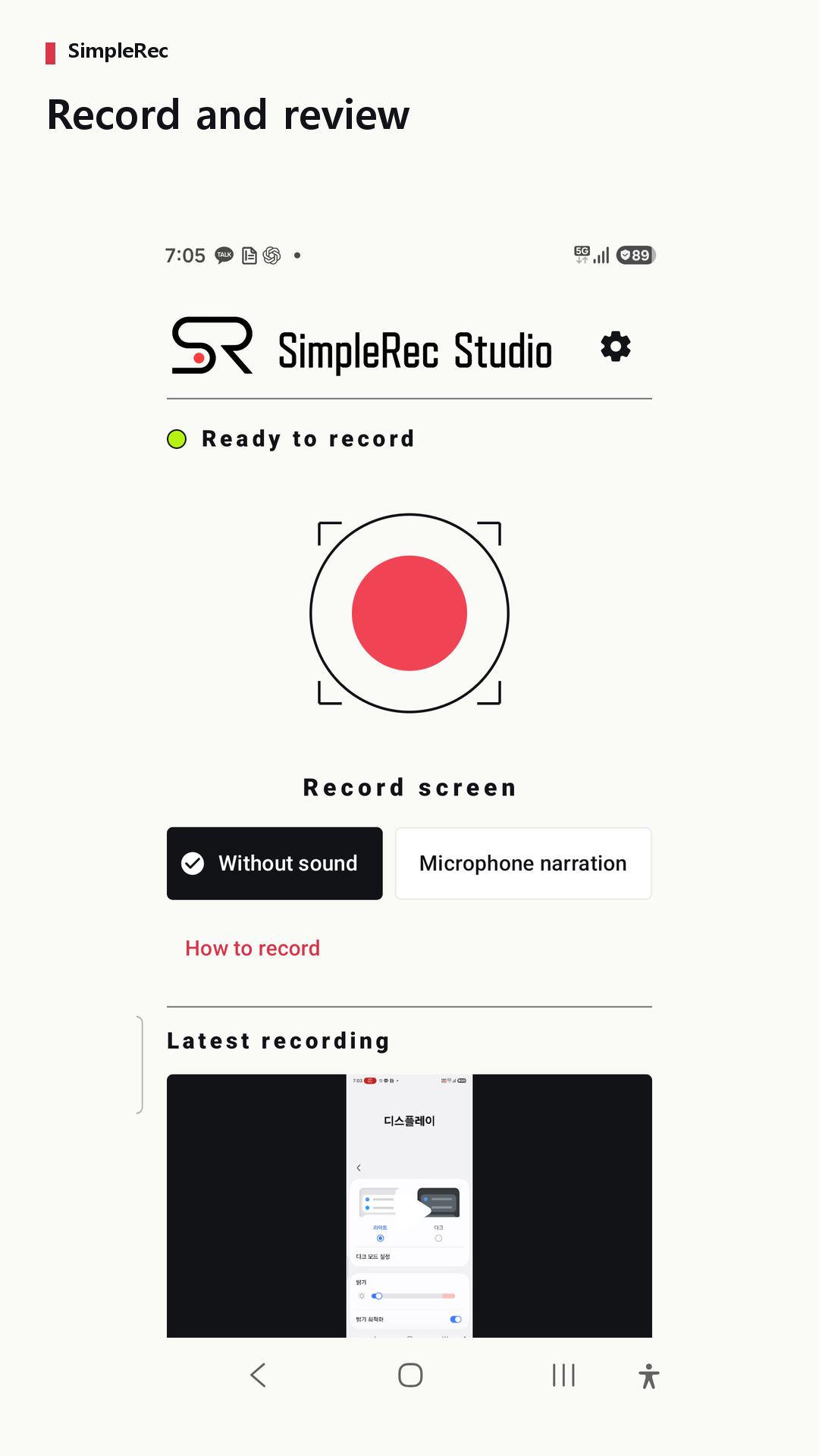
Record and review
Record and review
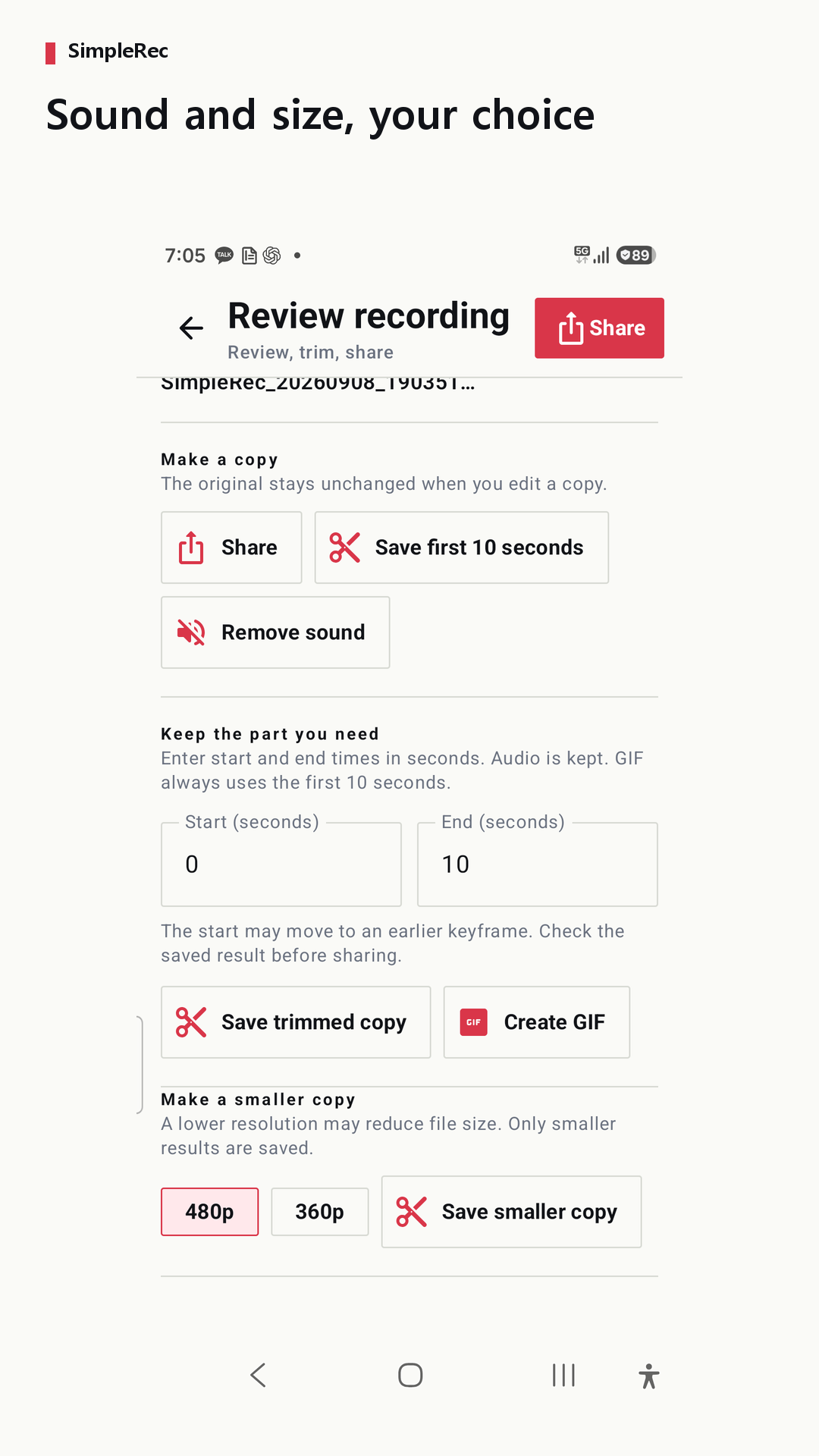
Sound and size, your choice
Record and review
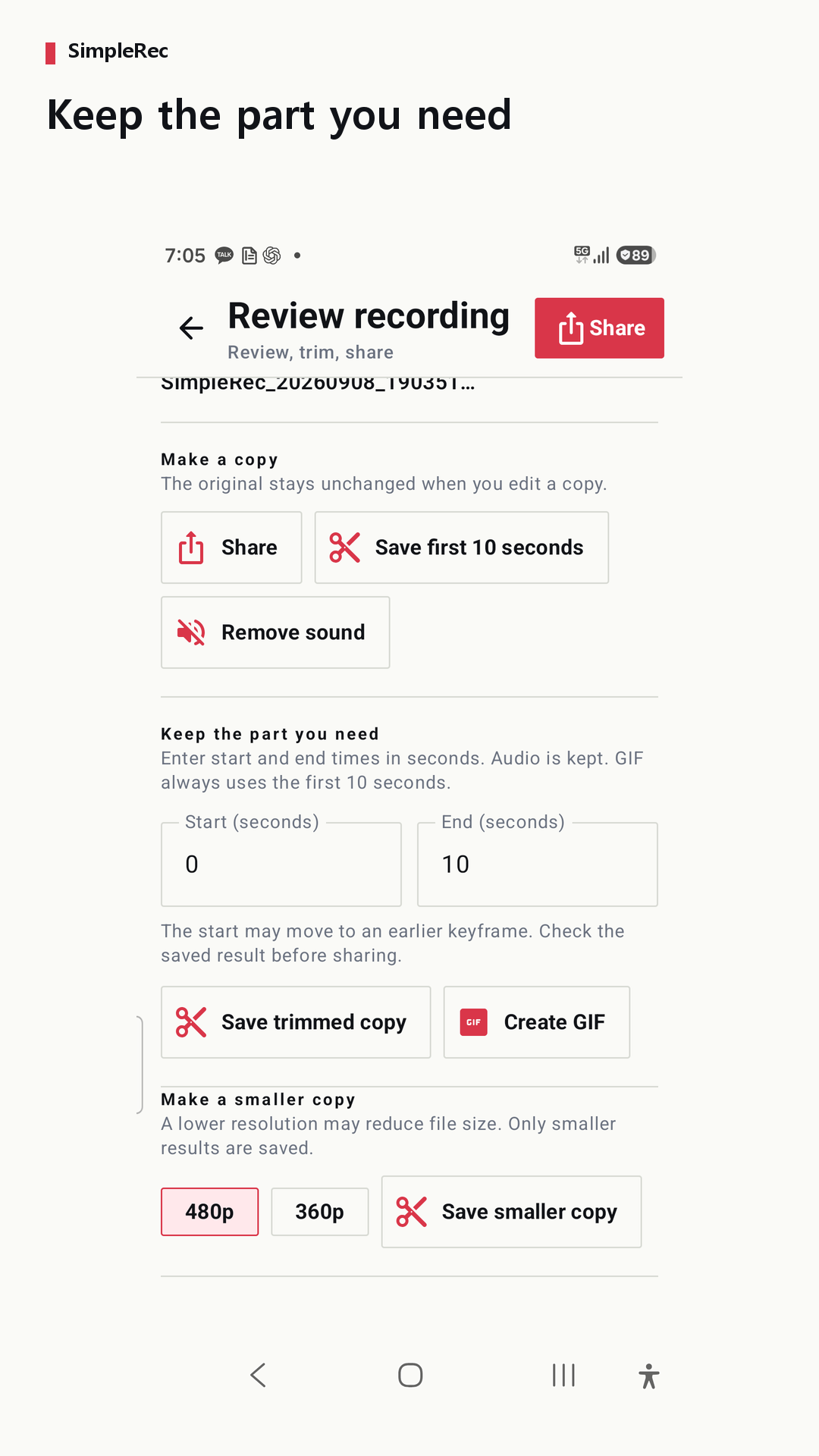
Keep the part you need
Sound and size, your choice

A complete recording flow

Record, trim, mute, and share your screen videos. Keep the original.
Record and review
01

Record and review

Keep the part you need
02

Keep the part you need

Sound and size, your choice
03

Sound and size, your choice

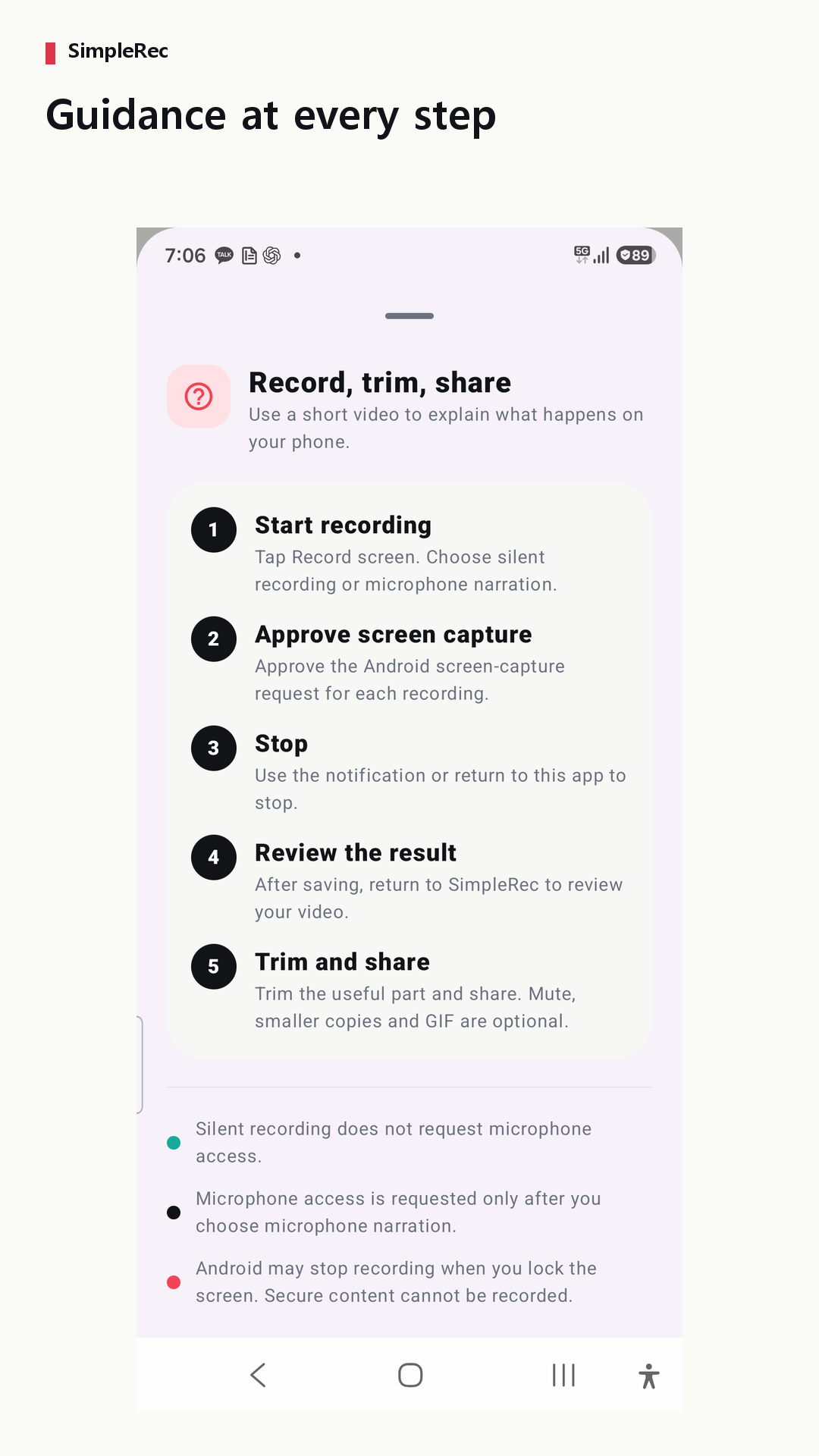
Guidance at every step
04

Guidance at every step

What SimpleRec Studio does

Show what happens on your screen. Share only the part you need. SimpleRec helps you record your Android screen, review the result, make simple edits, and share a video. Use it to explain how an app works or show the steps that lead to a problem. Choose whether to include your microphone before recording. A floating recording button is optional. After recording, review your video in the preview. Trim the part you need and save it as a separate copy. Your original video is preserved. Create a muted copy when you do not need sound. To reduce file size, try a 480p or 360p compressed copy. A compressed result is provided only when it is smaller than the original. Send the finished file to another app using Android sharing. Files you share are handled according to the receiving app's features and policies. Before you record Recording quality and frame rate may vary by device and operating conditions. Trimmed start and end points may differ from your selection because of video keyframes. Some apps restrict screen capture and cannot be recorded. Choose silent recording or microphone narration. The app interface supports Korean and English. Device or gallery backup and sync settings may apply to saved files. On Android 10 and later, saved public media may remain after uninstalling. On Android 8–9, files use app-specific storage; save important files elsewhere before uninstalling. Support: db0192a@gmail.com Privacy policy: https://privacysite-one.vercel.app

Frequently asked questions

Where are recordings saved?

Device or gallery backup and sync settings may apply to saved files. On Android 10 and later, saved public media may remain after uninstalling. On Android 8–9, files use app-specific storage; save important files elsewhere before uninstalling.

Does it upload my videos?

No. SimpleRec Studio does not require an account or upload recordings to a developer cloud.

Which audio can it record?

You can record the screen only or add microphone audio. Internal device audio is not claimed.

Practical guides

SimpleRec Screen Recorder

Record, trim, mute, and share your screen videos. Keep the original.
Get it on Google Play →