How to explain an app with a short screen recording
A short recording can answer “Which button do I tap?” more clearly than a long message. Keep each video focused on one task so the viewer can follow the sequence. SimpleRec records your Android screen and lets you review and share the result.
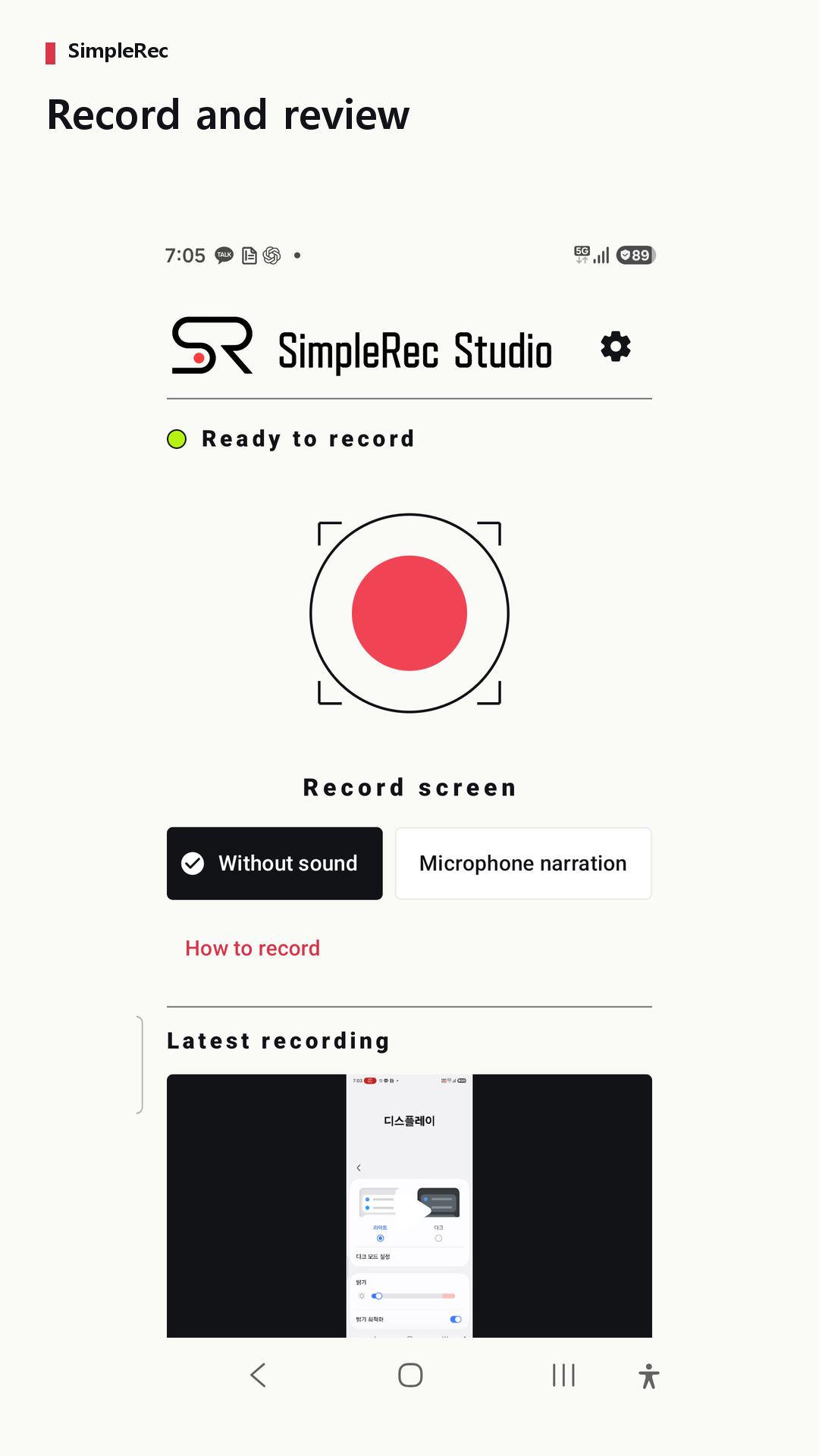
Prepare the screen you want to show
For a walkthrough of an app setting, decide where the demonstration starts and which setting it should reach. Check for personal notifications, account details, and other people’s messages before recording. Close screens that are not needed for the explanation.
Choose silence or microphone narration
In SimpleRec, choose to record without sound or explain with the microphone. Microphone permission is needed only for narration. Start recording, approve the Android screen-capture request, and demonstrate your steps. Microphone recording is different from recording internal device audio; SimpleRec does not promise internal audio capture.
Save and watch the recording
Return to SimpleRec and use the save button to finish. If you have allowed the relevant permissions, you can also stop through the notification or floating control. Replay the result and check that the buttons and steps are visible. Screens in apps that restrict capture may not be recorded.
Share the useful part
If the start or end contains unnecessary waiting, select a range and save a copy. Watch that copy for accidental private information, then choose the receiving app from the Android share sheet. Files shared to another service are handled under that service’s policies.