Trim a screen recording while keeping the original
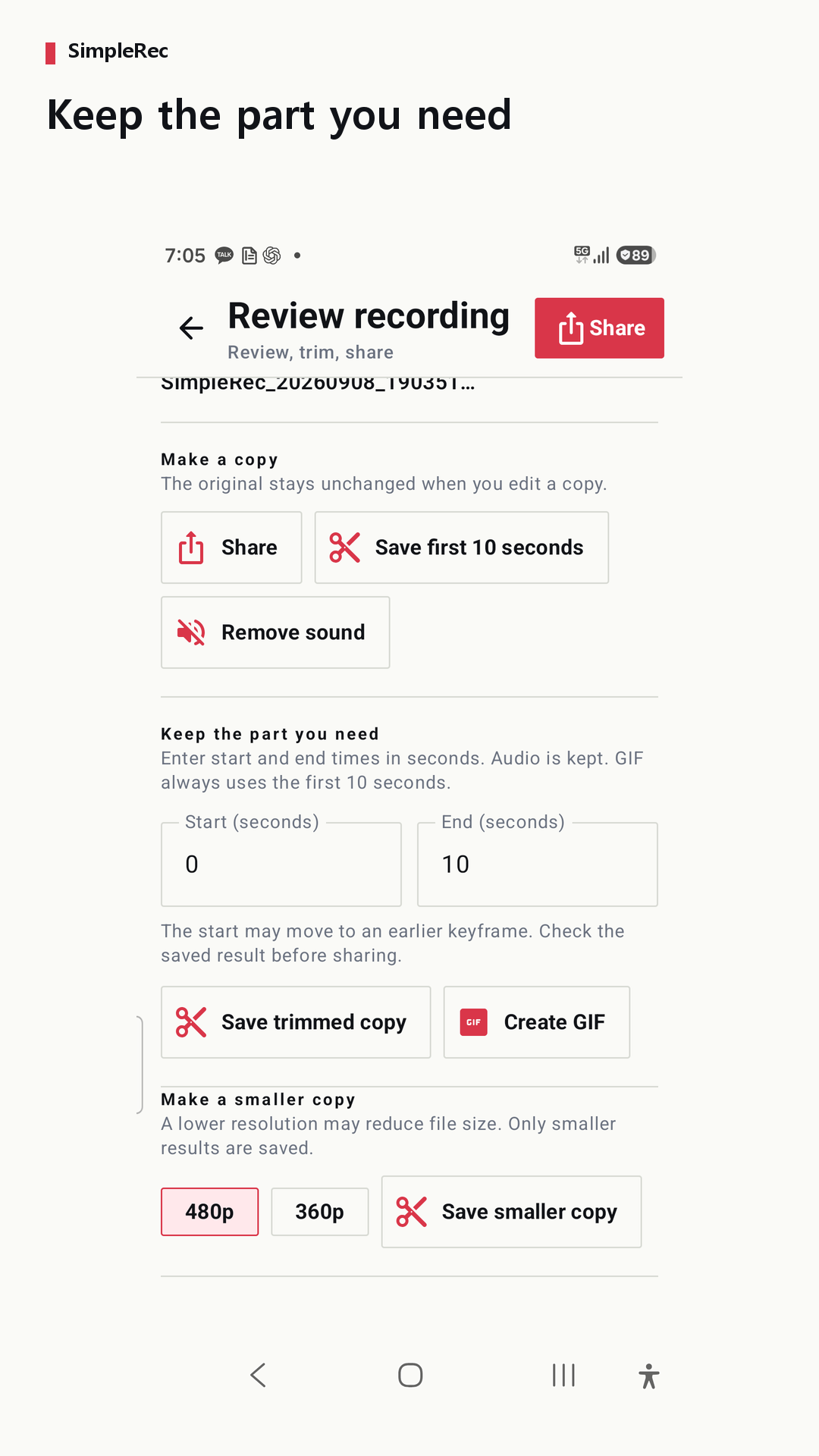
A useful bug recording may start with a long wait before anything happens. In SimpleRec’s recording review screen, you can select a range and save it as a separate copy. The original stays available if you need a different range later.
Watch the original and choose a useful range
Find the start and end that give the viewer enough context. A bug report is often clearer if it includes the action immediately before the problem. Avoid sharing ranges that contain login details, private conversations, or unrelated personal information.
Enter the start and end in seconds
Use the recording review screen to enter the range and save a copy. A selection from 5 to 10 seconds is an example, not a guarantee of exact frame boundaries. The start may move to an earlier keyframe, so do not assume that every frame before the entered start time is removed.
Replay the beginning and end of the copy
Check the saved result for missing actions or unwanted footage at the start. This matters especially when excluding a sensitive screen: the entered times alone do not prove that the screen is gone. If a safe range is hard to choose, make a new recording without the private information.
Share the checked copy
Choose the receiving app from the share menu and confirm that you selected the copy you intended to send. Keep the original if you may need to edit a different range. On Android 8–9, save needed files elsewhere before uninstalling SimpleRec.