
Explain a phone setting
Show the route to a setting, one task at a time.
Screen recording for Android
Show the action before an error or the route to a phone setting. Record and replay it, then share a trimmed or silent copy while keeping the original.
This website is in English. The app interface currently supports Korean and English only.
Silent screen recording or microphone narration. Internal device audio is not captured.
Watch a saved recording play in SimpleRec, then see the editing controls used to prepare a copy for sharing.
Show the route to a setting, one task at a time.
Show the buttons and sequence, with microphone narration if useful.
Include the action before an error. Check for private information first.
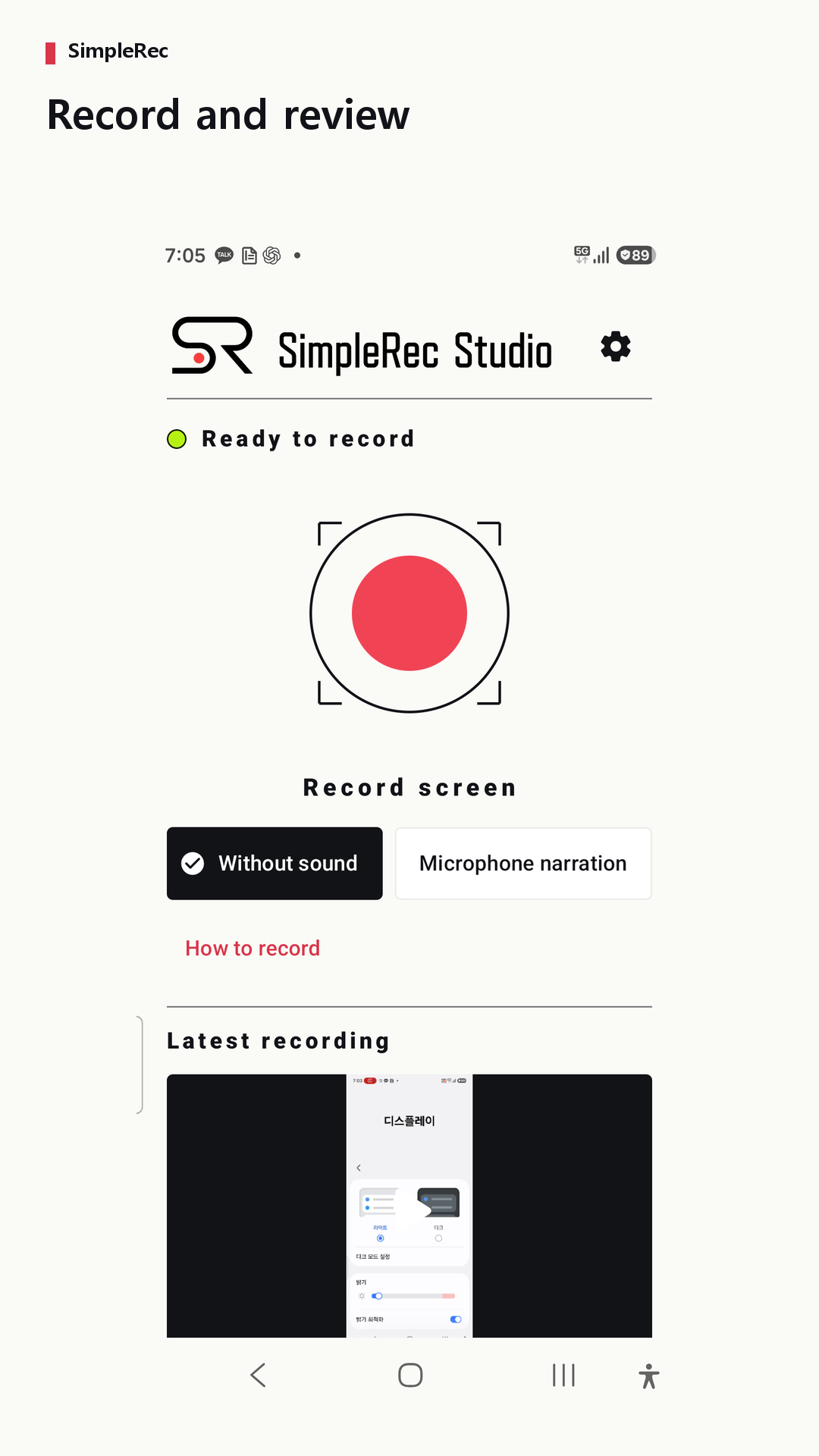
Choose silence or microphone narration. Floating controls are optional. Audio from other apps or the system is not recorded directly.
Save a useful time range as a separate copy. The original remains. Keyframes can make cut boundaries differ from your selection.
Make a silent copy or try 480p or 360p compression. Compressed results are offered only when smaller than the original.
Use the Android share sheet, then finish sending in the destination app. Its file limits and policies apply.
Choose one task. Check private information, then select silence or microphone narration.
Start from SimpleRec, approve Android screen capture, and show your steps.
Return to the app to finish. Replay the saved picture and sound.
Trim, mute, or try compression. Check the exact file before sharing.
Actual SimpleRec screenshots with an English app interface. The example recording may show content in another language.
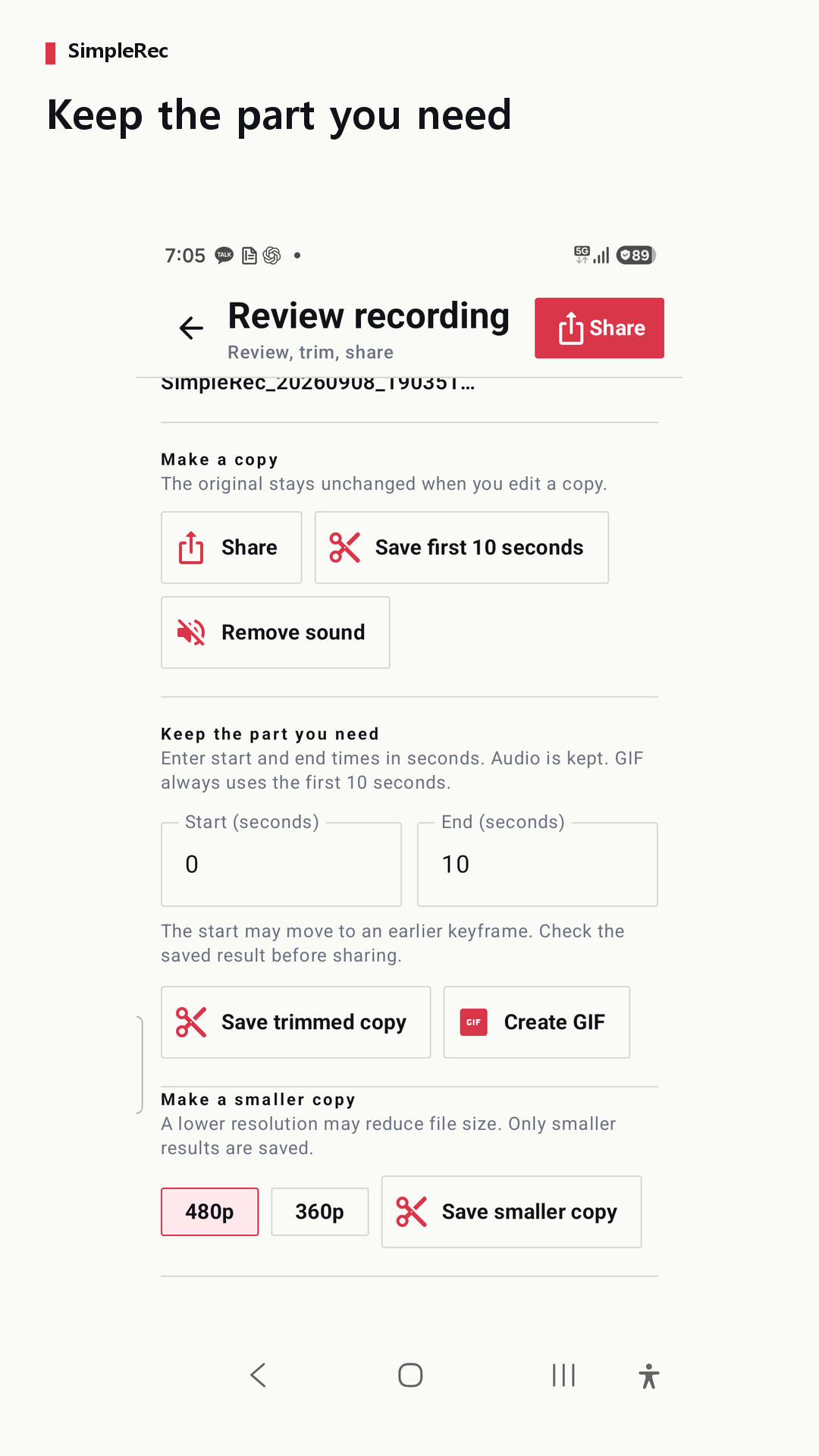
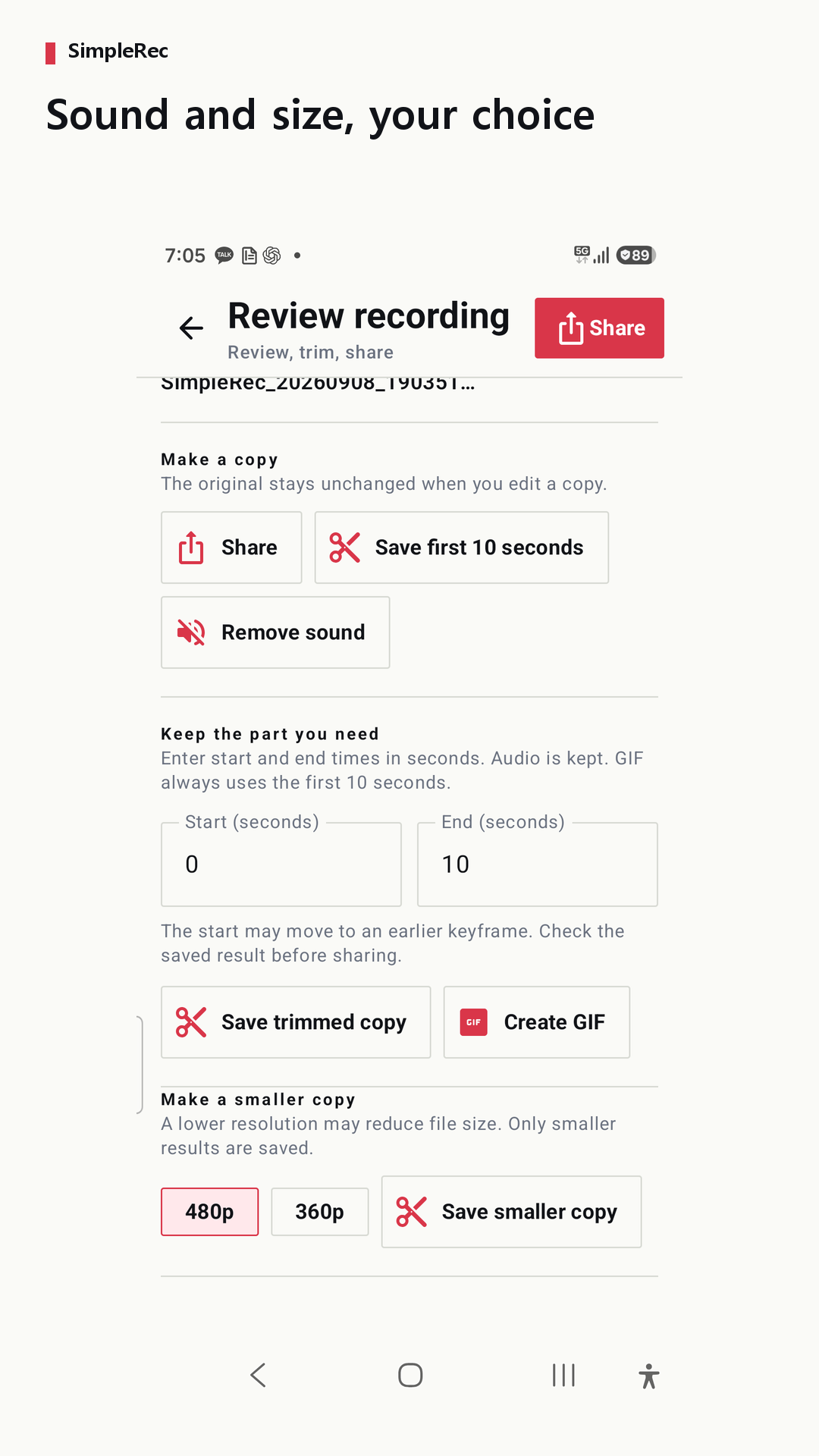
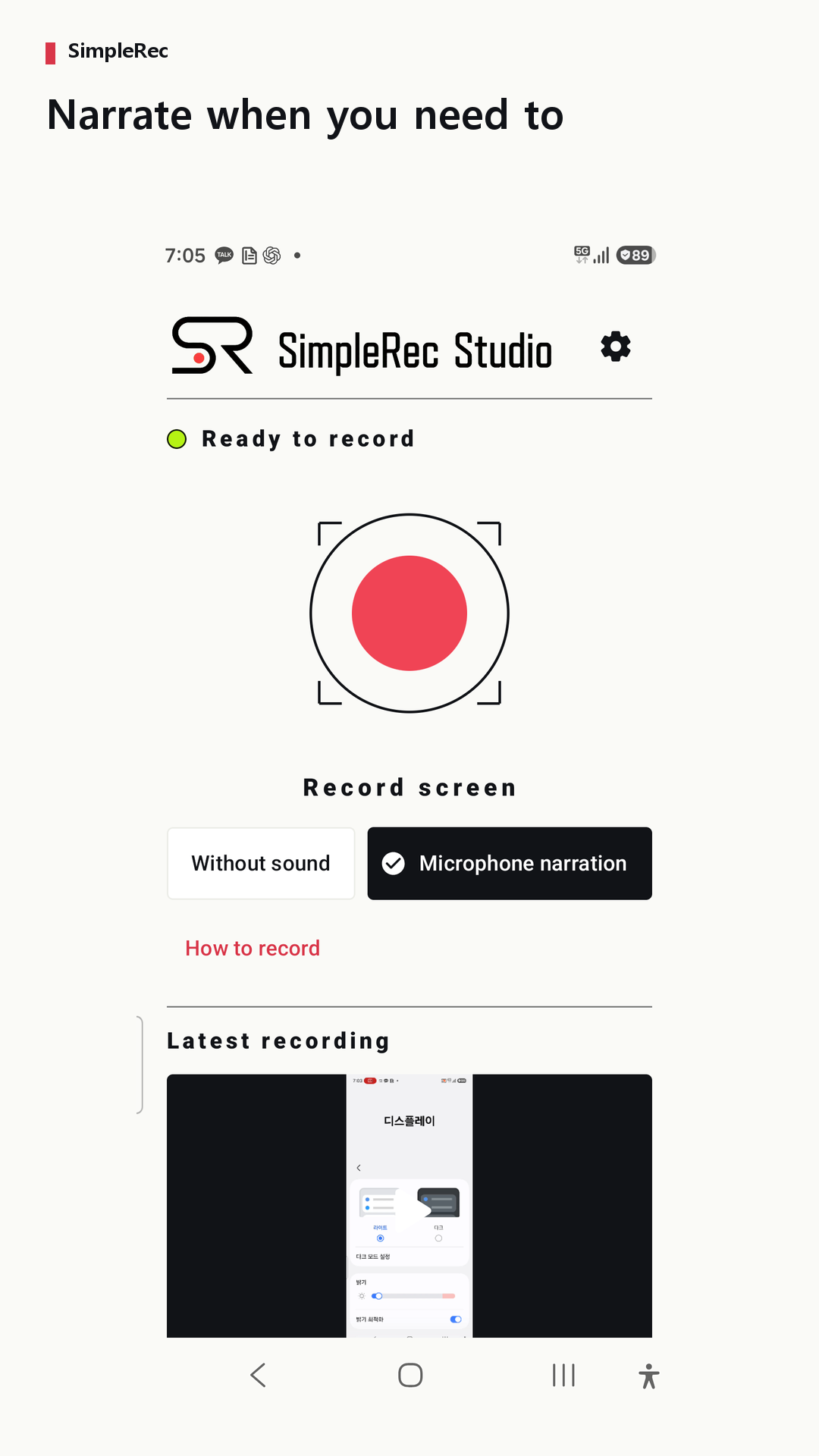
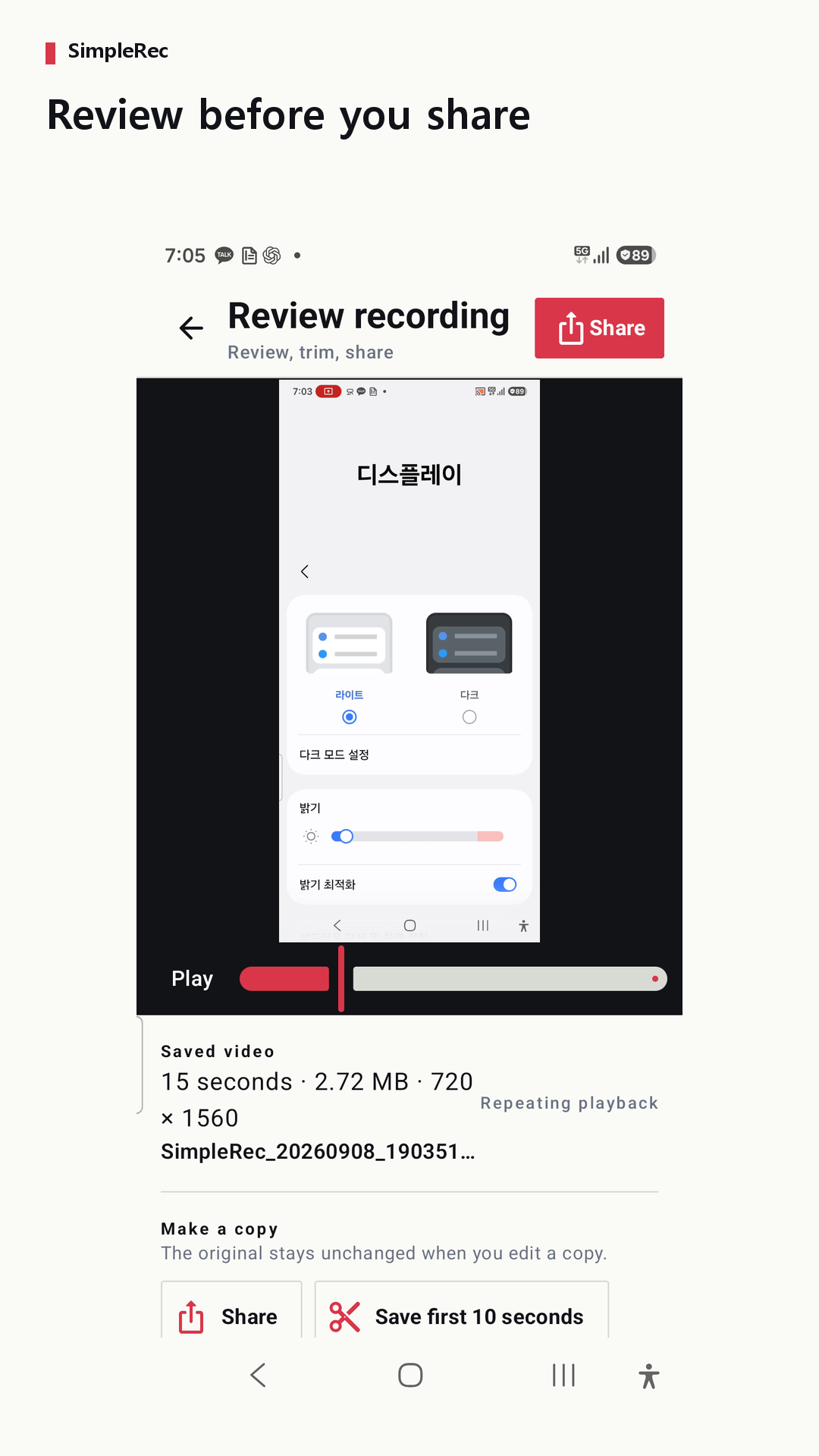
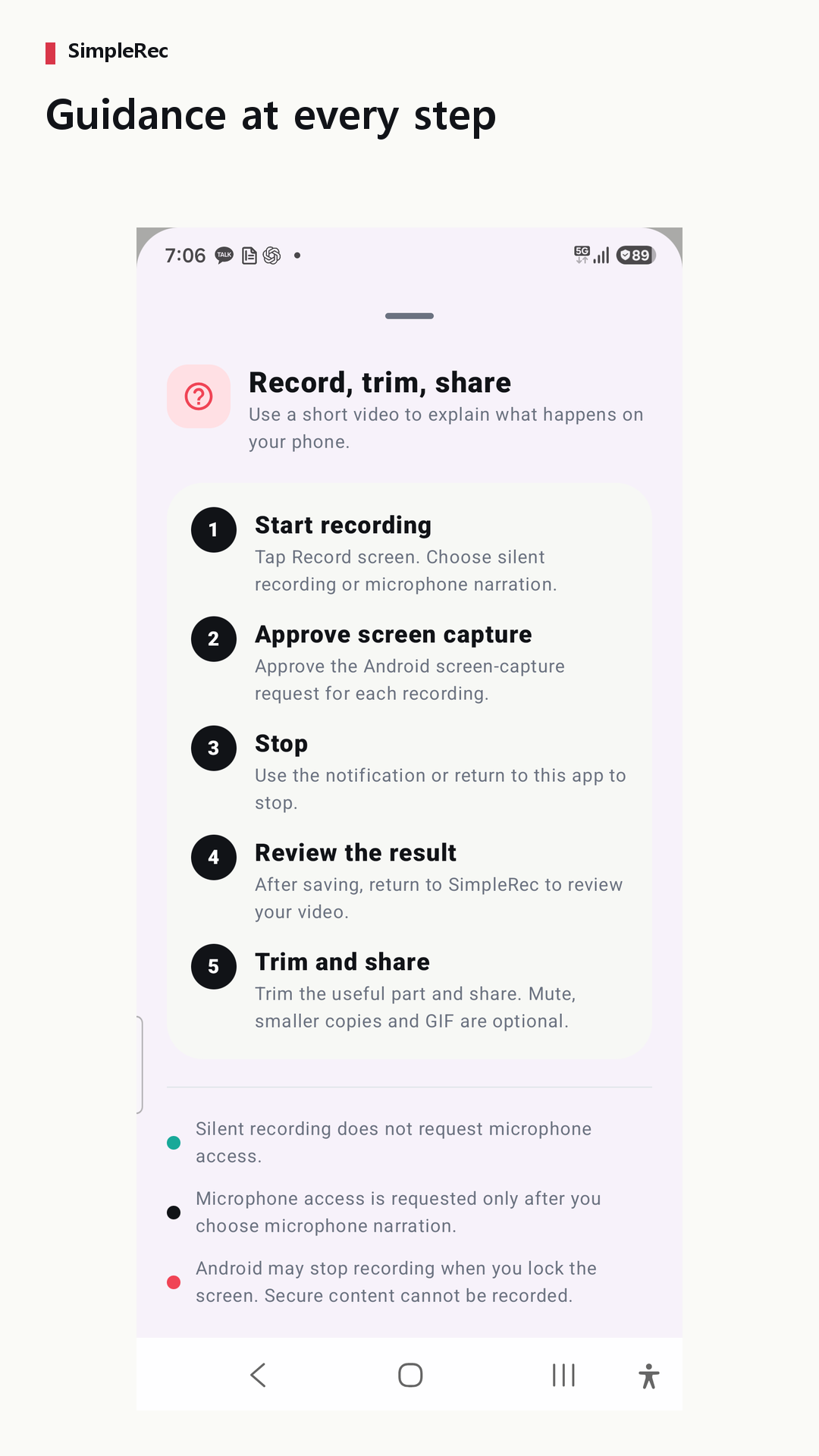
Prepare one task, record your Android screen, and check the result before sharing.
Read the guideChoose a range, save a separate copy, and understand the limits of keyframe-based trimming.
Read the guideMake a silent copy or try a smaller one, then check that the explanation still makes sense.
Read the guideStorage and privacy
Recording and making copies require no account or developer-cloud upload. Check files before sharing.
On Android 10 and later, recordings use the shared Movies/SimpleRec Studio folder and may remain after uninstalling. Android 8–9 uses app-specific storage; uninstalling deletes that app folder. Save needed files elsewhere first.
Device or gallery backup and sync settings may apply. Chosen sharing can transfer files under another app’s policies.
Privacy policyAndroid 8.0 or later. The app interface supports Korean and English only; website languages do not add app languages.
No. Choose silence or microphone narration. The microphone may pick up surrounding sounds, not direct internal app audio.
Approve screen capture each time. Microphone, floating controls, and notification controls need their relevant permissions when used.
Not always. Keyframes can shift cut boundaries, including an earlier start. Replay the copy; trimming is not redaction.
No. Try 480p or 360p; only smaller results are offered. Check important text before sharing.
Android 10+ shared files may remain. Android 8–9 app-folder files are deleted. Export needed recordings before uninstalling.
No developer-cloud upload is required. Device/gallery backup settings and sharing to your chosen app may transfer files.
Some apps prevent capture. SimpleRec does not bypass protection; check a short recording before relying on it.
Include your phone model, Android version, steps, and error text. Do not email private recordings, passwords, or account details.
Start with one short task, replay the result, and share the part your viewer needs.